Math Channels
Beta feature
Math channels are currently in an early release state. Functionality can change over time and and stability can't be guaranteed.
Keep the following in mind to avoid issues:
- Avoid spaces and special characters in channel names that are used as math channel inputs. This prevents formula parse errors.
- Do not rename a source channel while it is referenced by a math channel. The math channel will continue to work, but reopening the formula editor will show an error because the reference no longer matches.
- Math channels are not saved across sessions. If you close EasyGraph, all math channels need to be recreated. Persistence is planned for a future release.
Math channels allow you to combine live data from multiple device channels into a new derived channel using a custom formula. The result is displayed in real time in the live graph and can be included in recordings.
Creating a Math Channel
Open the main menu bar and click Channel Create Math Channel. A formula editor window opens.
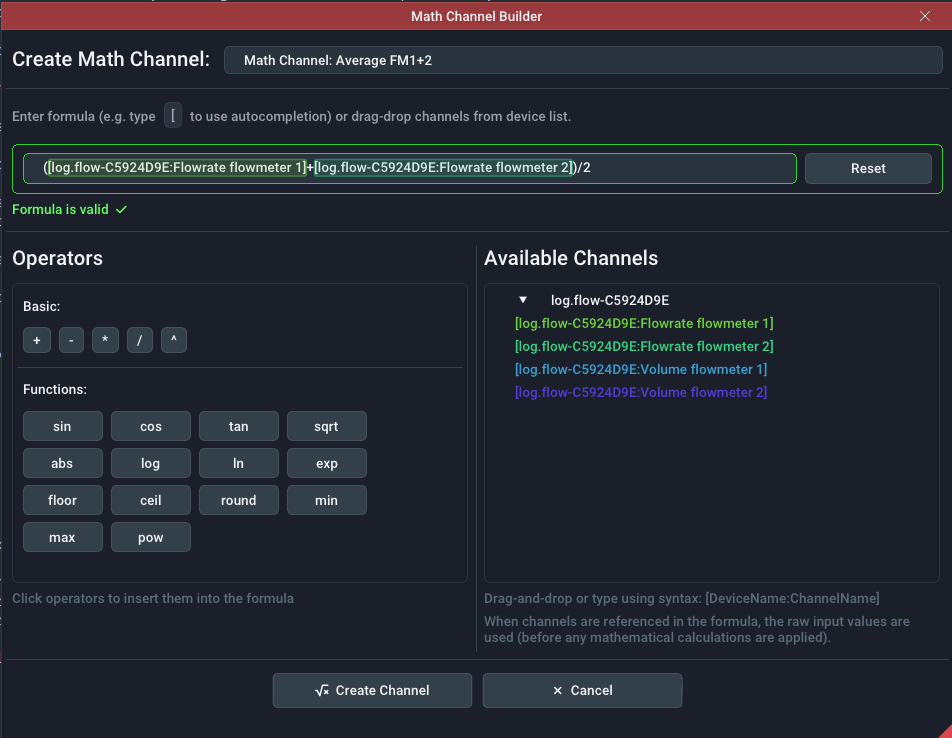
In the formula editor you can build your expression by:
- Dragging and dropping channels from the device manager into the formula field
- Typing a channel reference manually using
[channel name]notation — autocomplete will suggest available channels as you type - Clicking the function buttons in the editor to insert operators and math functions at the cursor position
Once you confirm the formula, a new virtual math device appears in the device manager. The math channel samples at the rate of the fastest source channel.
To edit the formula later, right-click the channel name in the device manager and choose Edit.
Available Operators and Functions
| Category | Symbols / Functions |
|---|---|
| Arithmetic | + − * / ^ |
| Trigonometric | sin cos tan |
| Algebraic | sqrt abs log ln exp |
| Rounding | floor ceil round |
| Aggregation | min max pow |
Formulas can combine any number of channels — the same channel can also be used multiple times. You can reference another math channel as an input, but it must be created before the one that references it (no forward references).
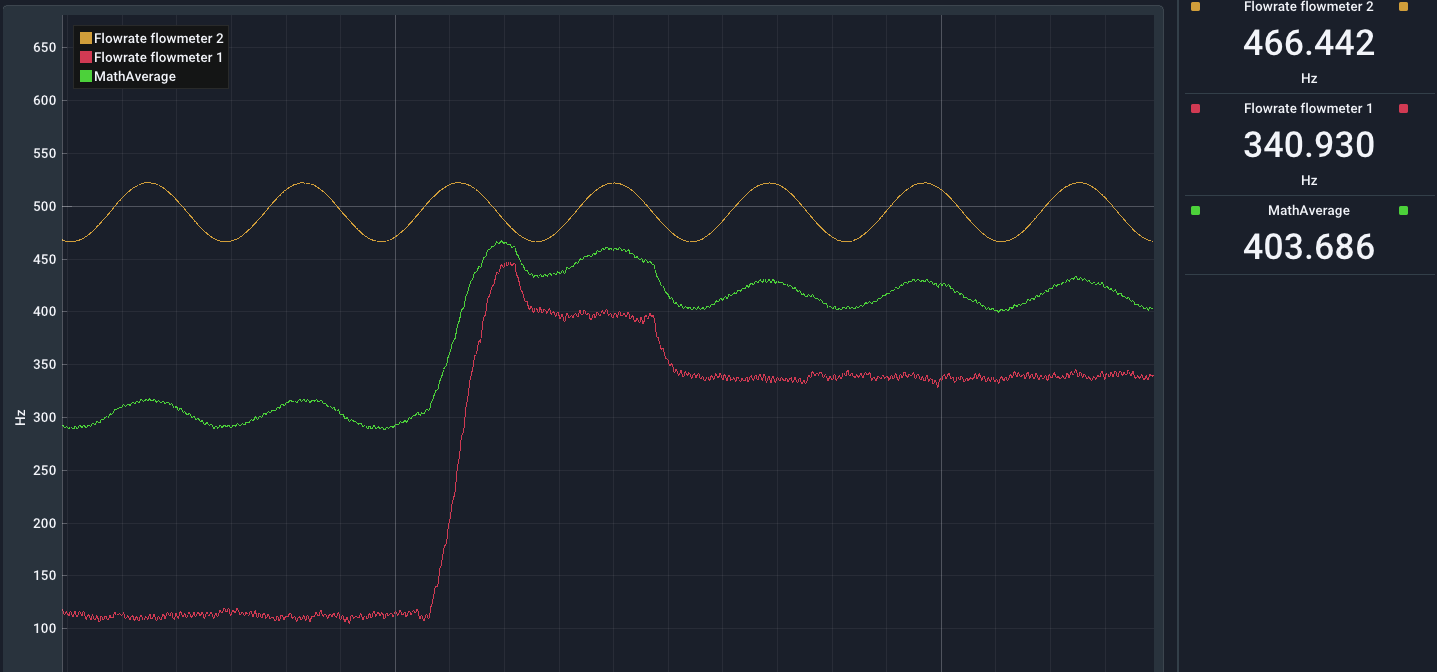
Example — average of two channels:
([log.flow-A4A35FA3:Flowrate flowmeter 1]+[log.flow-A4A35FA3:Flowrate flowmeter 2])/2
The result in the live plot:
Channel Name and Unit
Math channels are auto-named Math Channel 1, Math Channel 2, and so on. To rename a channel or assign a unit, right-click the channel entry in the device manager.
By default, no unit is assigned. If you apply a formula that produces a known physical unit, set the unit label via the channel context menu so downstream users understand the value.
Raw Values — Important Note
Math channels use raw signal values — before any Math Settings conversion
The input to a math channel is always the raw measured value coming directly from the device (e.g. Hz or pulse count). Any Math Settings (gain, offset, unit conversion) configured on a source channel are not applied before the math channel receives the value.
Example: If a log.flow channel measures in Hz and Math Settings are configured to display the value in l/min, the math channel still receives the raw Hz value — not l/min.
If you need to operate on converted values, apply the same gain/offset factor explicitly inside your math formula.
When a Source Becomes Unavailable
If a source device is disconnected, the math channel shows an error state and stops producing data. Reconnecting the device re-enables the math channel automatically.
To delete a math channel, first disable it by clicking on the channel name to deactivate it, then right-click and choose Remove from the context menu.