User Interface Guide
Panels
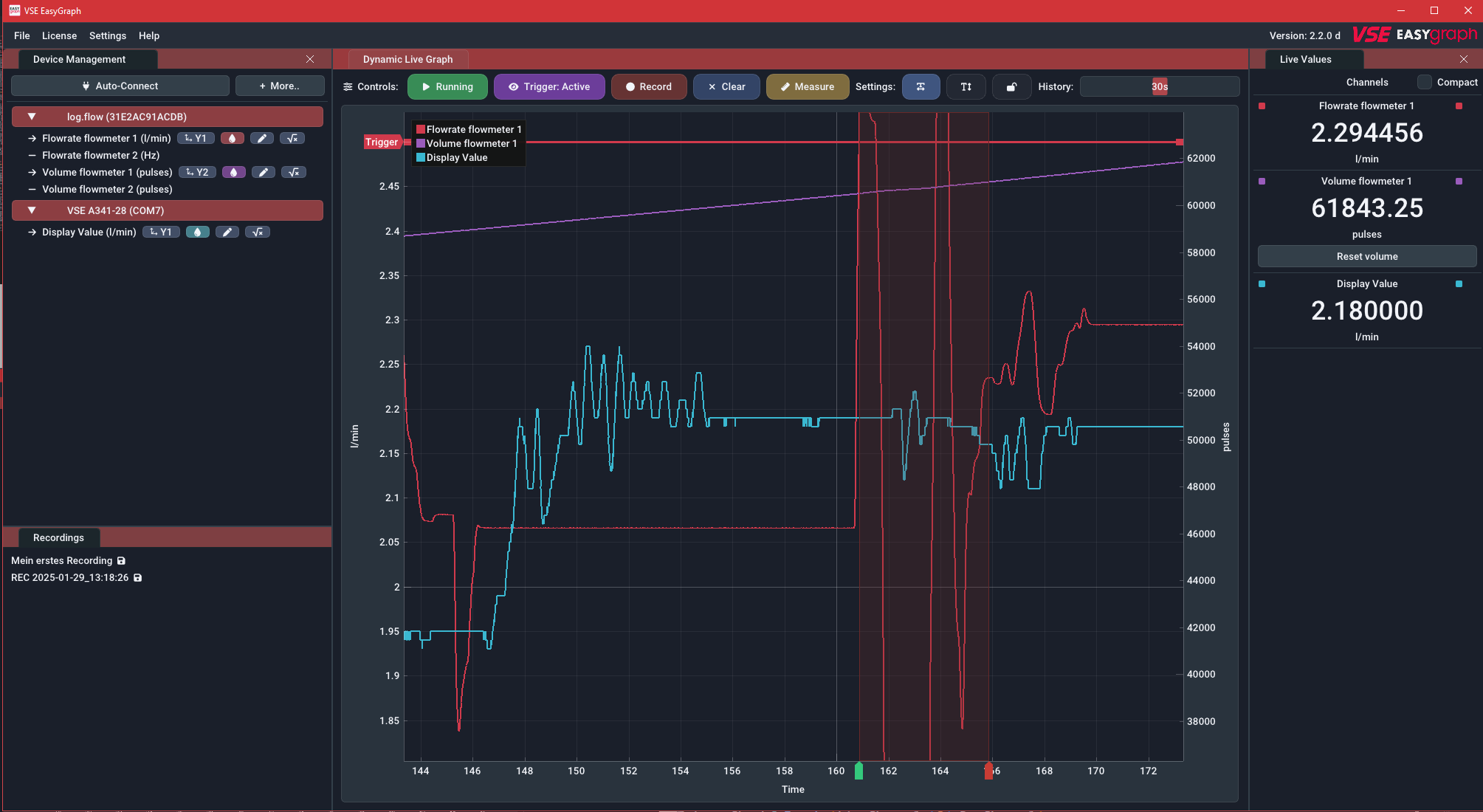
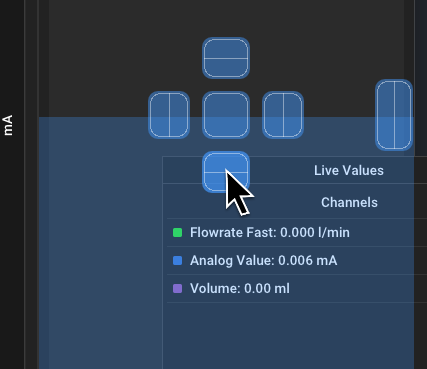
The software's user interface is based on panels in a main window. By default, the main window consists of the big Live graph panel in the middle, the device management panel on the left and a Live value panel on the right, but additional windows can be toggled using the Settings menu. You can drag the panels out of the window by dragging on the title bar of each panel and dropping them. To re-dock them, press and hold the Shift key while dragging and drop into one of the highlighted dock zones.
Previously saved recordings are shown in the recordings panel and open up as tabs of the Live graph panel. You can identify them by the File: prefix in the title bar.
Help: Panel is not visible
You can always make panels visible again using the Settings menu in the top menu bar and checking the panel that you want to re-enable.
Live graph panel
Plot navigation
The plot window shows an XY-plot of the measured data. The X-axis is time; the Y-axis is the measured value. Multiple Y-axes are supported to separate channels with different units (e.g. flowrate, volume, analog).
Hint: This applies to both the live plot and the file viewer
Use your mouse to navigate the plot window:
- Clicking and dragging with the left mouse button on the plot moves it.
- Clicking and dragging with the left mouse button on an axis moves this axis only
- Double left clicking in an axis auto-adjusts it and also recovers Auto-Scroll or AutoScale functionality.
- Clicking and dragging with the right mouse button selects a region to zoom into
- Scrolling on an axis or the plot zooms in/out
Refer to the following video:
Controls

-
Running/Pause button: Start or pause the incoming data stream. All samples during a pause will be discarded. Alternatively you can disable the Auto-Scroll feature (see below) to visually pause the plot while still keeping the data stream running.
-
Trigger button: Enables or disables the trigger functionality that can be configured using the trigger menu which can be opened by right-clicking this button. The trigger functionality will start a recording automatically if a certain condition is met.
-
Record button: Manually start or stop a recording. Optionally use a right-click to customize the filename before starting the recording. Active/finished recordings will be shown in the recordings panel.
-
Clear button: Clear all historic data in the live graph panel. This leaves you with an empty plot window.
-
Auto-Scroll Feature: The Auto-Scroll feature will make the right side of the plot sticky with the current time. This means that the most right value will always be the most recently recorded value. As a consequence the plot will automatically scroll as time progresses. In most cases, it should be kept on. When zooming using the right mouse button, this feature will be disabled. When double clicking the X-Axis, this feature will be re-enabled. Before you can move the plot in the X direction, you will need to disable the feature.
-
Auto-Scale Feature: The Auto-Scale feature will automatically adjust the Y-Axes according to the visible data in the plot. It is also dependent on the selected history time. The feature can sometimes be distracting (for very small value changes) and you should consider turning it off and manually setting the expected Y-Ranges using the scroll wheel and dragging.
-
Lock-Min Feature: The Lock-Min feature will lock/fix the current minimum value (e.g.
0) of the flow axis. This option can be used in combination with the Auto-Scale feature to allow the maximum value to scale automatically while keeping the X-Axis in view and to not automatically zoom in too much. It is disabled by default. -
History slider: The selected time on the history slider will set the visible range of the plot. It controls how long you can look into the past. In case you use log.flow and have set the sample rate setting to
Automatic, the history time will also (inversely proportional) affect the sample rate.
Limits
To keep the RAM usage of the software moderate and the performance high, the maximum number of samples shown in the live graph is limited. Therefore the visible samples will be removed if they exceed a buffer size of \(2^{19}=524288\) samples. Recordings are not affected by this limit as the memory is allocated dynamically (as long as there is enough free RAM).
If you plan to take long recordings, it is therefore advisable to reduce the sample rate of the connected device.
Trigger Menu
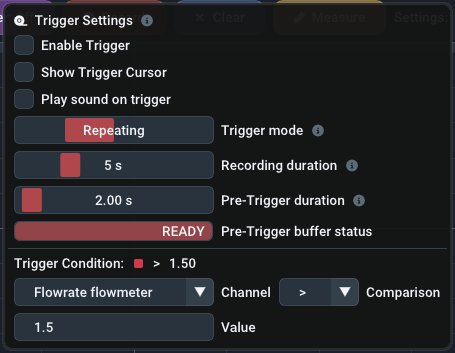
The Trigger context menu contains options about the trigger functionality. Open it by right-clicking the Trigger button. The trigger can automatically start a recording if the predefined condition is true. The selected trigger mode decides how the recording is stopped again.
All trigger options are explained more in-depth in Recording & Triggering
Device Management Panel
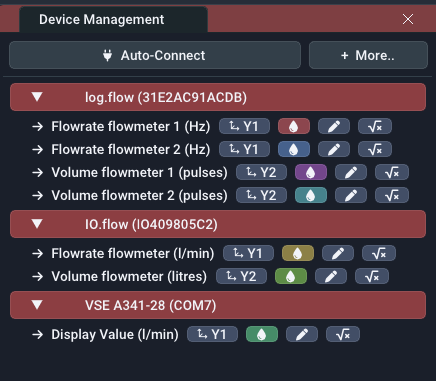
Use the device management panel to establish a connection to a datalogging device. Before attempting to connect to a device, make sure you have completed license activation.
Depending on the device type, it either can be automatically connected or manually:
-
Automatic
To connect to a log.flow datalogger or an USB-IO-Link master for IO.flow®, use the Auto-Connect button.
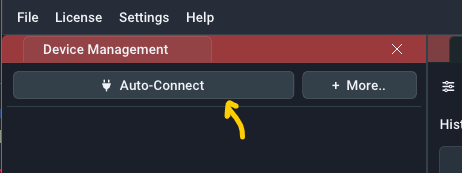
-
Manually
To connect to an evaluation unit (display or FU-converter) via an USB-RS232-Adapter, use the More button and choose the matching COM-Port
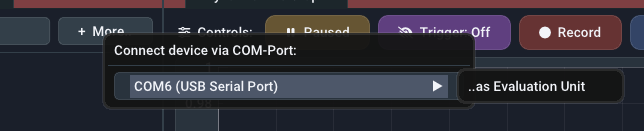
Make sure the device is connected properly to the computer and turned on
When the connection is established, it will be added to the device list below the Auto-Connect button. An active device connection is indicated by the red device entry. The currently measured values will be shown in the Live value panel and the Live graph panel.
You can add multiple devices at the same time to record or display them together in the live plot. By performing a Right Button click on the device entry you can launch the device specific settings panel in order to change some settings or to disconnect/remove the device. Refer to the relevant device section of this manual for more information.
Question: What are the gray device menu entries?
Gray entries indicate a lost connection (e.g. USB cable unplugged). Click Left Button to remove the entry and reconnect using the methods above.
Channel Settings

Below each device you will find all available data channels. By default, all channels will automatically be added to the live plot. You can toggle them by clicking on each entry. The arrow icon () means that the channel was added to the live plot, a minus icon () means that it is disabled. Instead of clicking you can also drag-drop the channels into the plot window.
Next to the channel name you will find the following channel options:
- Change plot axis: You can manually select the Y-Axis the data will be referenced to. This is useful to seperate data with different base units (e.g.
l/minandVolts). - Modify plot color: Select the color in which this plot is drawn.
- Edit channel description: Change the channel text and unit. Here you will only change the channel name and unit label that is shown below the value. To actually convert the value to other units, use the math settings (factor and summand).
- Math settings: Set a custom summand and factor to modify the incoming value mathematically before plotting/recording it.
Those options can also be changed via the context menu (Right-Click).
Math settings
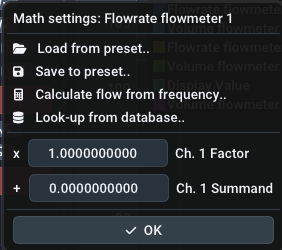
Using the Math settings you can set channel specific calculations to suit different target units. The math functions supports two simple parameters:
- Gain (Factor)
- Offset (Summand)
To make the usage of those parameters more user friendly, you can use the Calculation Assistant and Math Presets.
Recordings panel
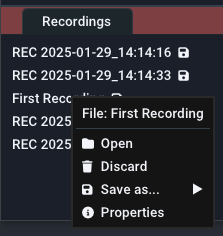
The recordings panel lists all active, finished and imported recordings. Fresh recordings only persist in temporary RAM and you have to export them in order to keep them after the program exits. You will see different icons besides the filename to show different states of the file:
- : File is currently recording
- : File is unsaved and needs saving
- : File was saved successfully.
- : Dataset was imported from old filetype [pre-v2.2 .bin file]
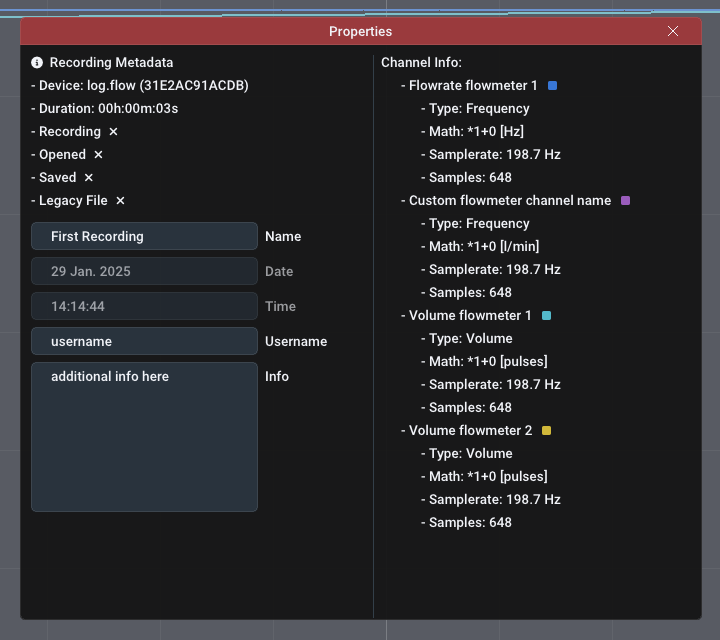
To manage a recording, right click on the list item. You can open or close the file and also open its property panel where all of the metadata of this file is shown. You can simply edit the fields. After editing you will need to re-save the file as it is not automatically updated on your hard disk.
Filetypes + Import/Export
There are four different import/export file types available:
| File type | File extension | Advantages | Disadvantages | Recommended |
|---|---|---|---|---|
| Binary | .bin |
Fastest, small size | Not portable to other programs | |
| Excel Sheet | .xlsx |
Widely supported filetype, Excel graphs | Very slow, row limits, RAM usage high, No reimport | |
| XML file | .xml |
Fast, Readable format | Very verbose and huge filesize | |
| PDF file | .pdf |
Looks good, fast to create report | No actual data, only image of plot, No reimport |
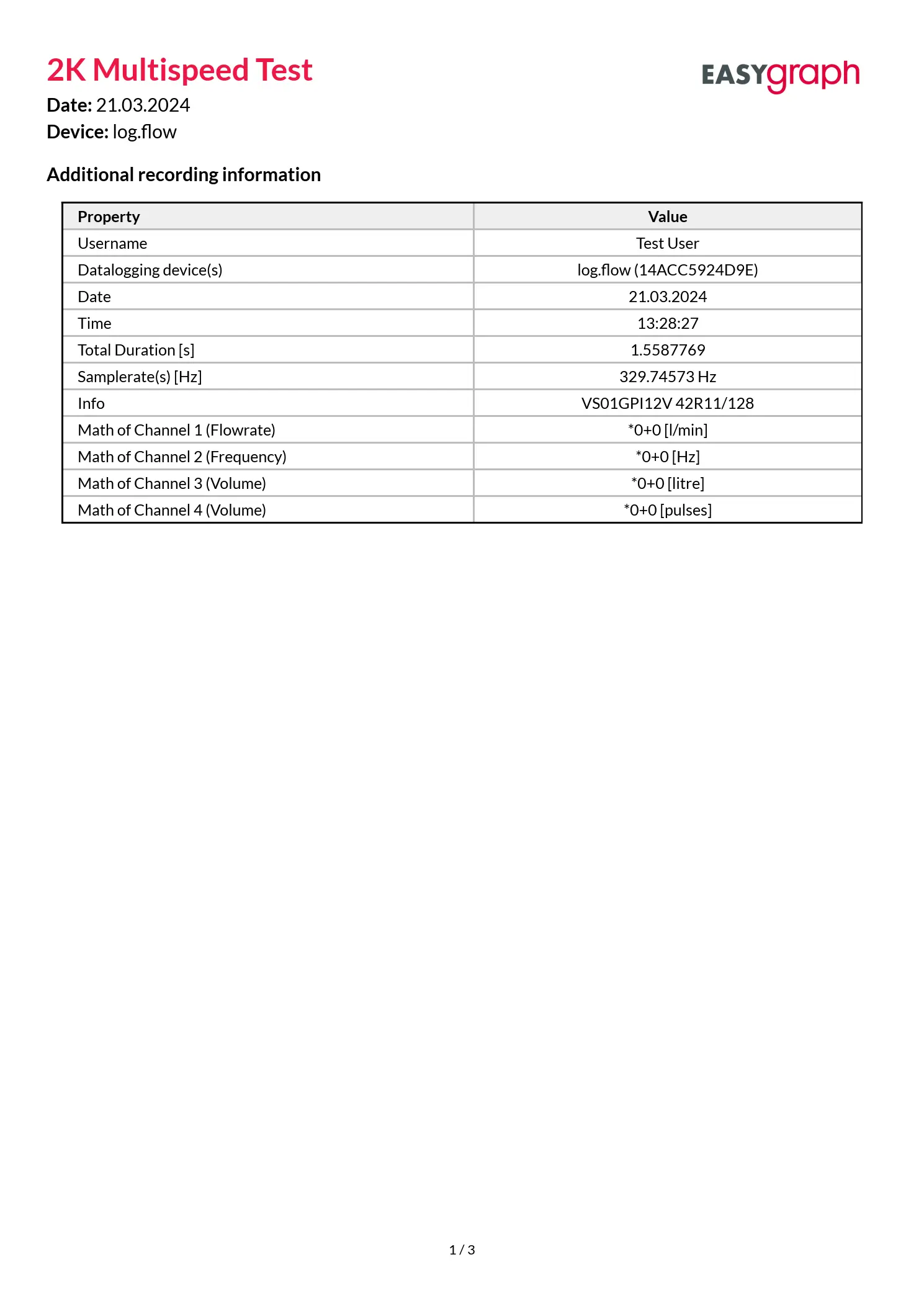
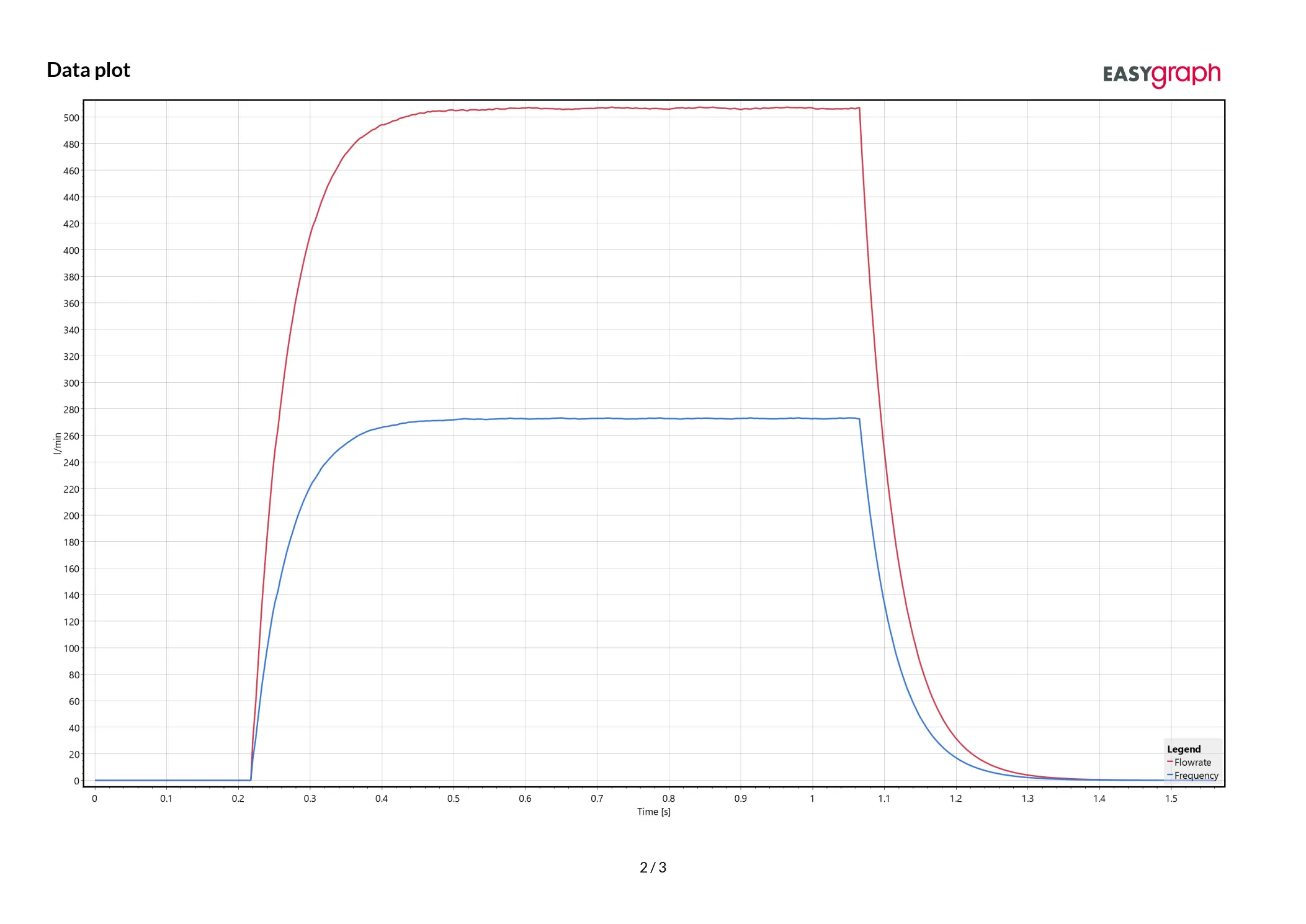
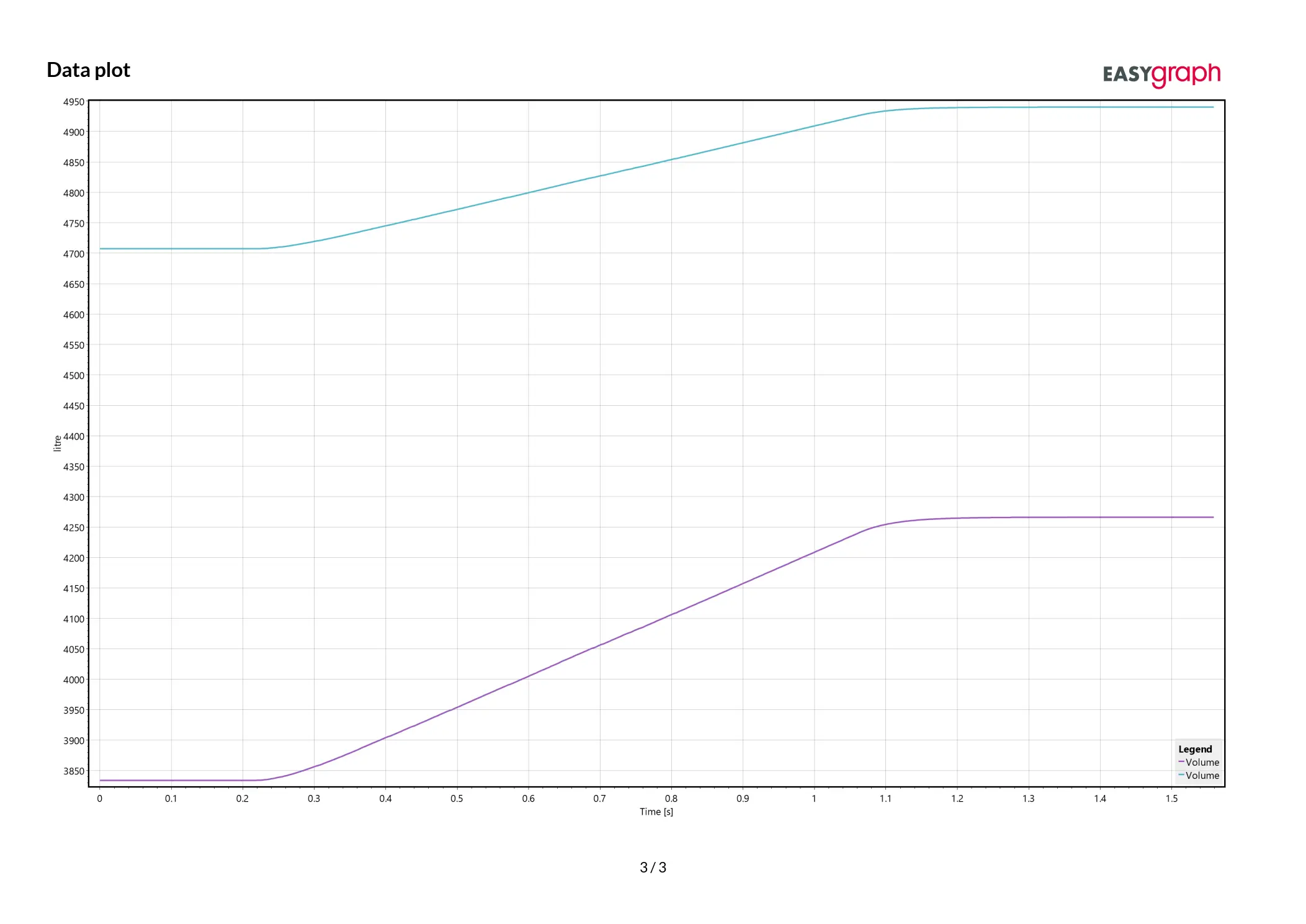
PDF report
This is what the exported PDF report looks like:
Live value panel
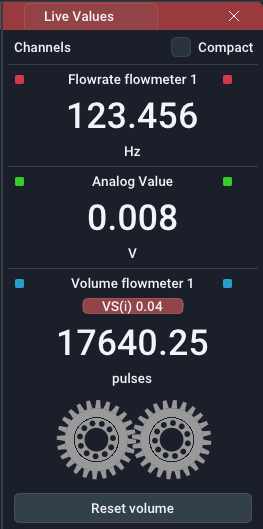
The live value panel contains the current values from the datalogging device. The number of visible channels depends on the selected channels in the Device management panel. The plotted channels can be composed of multiple devices. The channel names are automatically adapted to the connected device.
You can change the number of visible decimal places seperately for Volume and Flow in the Settings menu. This setting does not affect the recoding resolution or internal value.
For all channels that display a volume, the value display will have a Reset Volume button to quickly set the volume back to zero. Additionally you can enable a gear/rotor simulation by selecting the matching flowmeter using the Activate Visualization button. Using the calculation assistant sets the visualization flowmeter automatically for this channel.
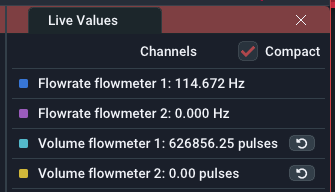
If you have a small screen or a lot of channels active simultaneously, you can use the Compact checkbox in the top right corner to make the value display smaller.
Tip: Middle Mouse Click
Quickly hide/disable unused channels by clicking on them with the middle mouse button. You can re-enable them via the device management. Disabled channels will not be recorded - only the plots that are visible in the live window.
Gear and rotor simulation
The Gear/Rotor visualization is available for volume/count-based channels. It maps the measured volume value to a rotational angle of the internal gears or rotors of the flowmeter. This is mainly useful for training, demonstrations, and intuitive understanding of how small delivered volumes or very high internal speeds relate to the physical meter.
Known limitation:
- Without interpolation factor support, especially on flowmeters with only one channel, the display resolution may look coarse because the rotation can only advance one tooth per pulse.
The example below shows gear/rotor animations for a RS5/512 flowmeter and a VS0.04/128 flowmeter:
File browser panel
You can show the file browser panel by using using +*"File"++ Open via File Browser in the main menu bar. This will display an explorer-like file browser to open files. Using Open you can use the windows default file browser.
In the topmost layer the file browser will list all attached harddrives and network drives. Additionally commonly used directories such as Desktop, User and Documents will be shown.
While directories are always shown, files are only shown if the filetype is compatible with EasyGraph. Supported file extensions for import are: bin and xml. Import files (recordings) by double clicking on them. The file will be shown in the Recordings panel.
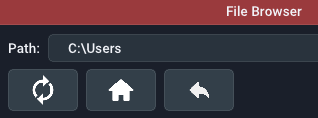
You can use the buttons at the top to perform certain actions:
- Refresh: Reload the current directory and re-list all files
- Home: Go to
Computer(home directory) - Up: Go up one directory layer until you reach the topmost layer with all drives and shortcuts
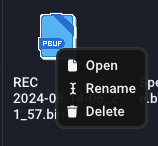
By right-clicking on supported files you can open a context menu to Open, Rename or Delete them:
Main menu bar
File
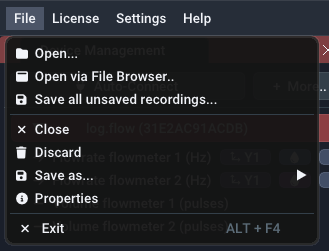
Open: Use the explorer to select a recording that you want to re-import. Supported filetypes are bin and xml.
Open via file browser: Use the integrated file manager to select a recording that you want to re-import. Supported filetypes are bin and xml.
Save all unsaved recordings: Opens an explorer window to select the directory you want to save all unsaved recordings into. This does not check for existing files so it is advised to choose an empty directory.
Close:: Closes the open file plot tab.
Discard:: Removes the open file plot from the recording list, effectively deleting it. If the file is already saved, this will only remove the file from the application (closing it), the real file on the HDD remains untouched.
Save:: Saves the file as a binary file at the last known file save location (or where is was imported from)
Save as...:: Saves the file as a selectable filetype. See filetypes for more information.
Properties: Shows the metadata of the open plot file.
Exit: Closes the application.
Close with unsaved recordings
If you are closing the application while having unsaved recordings, a popup will appear that reminds you to save your recordings.
You have three options now:
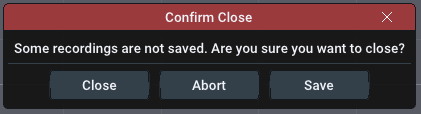
- Close: Close the program and keep them in the recording list (backed up to temporary location). They will reappear on next program start.
- Abort: Don't close the program to save manually.
- Save: Save all unsaved recordings into a selectable directory and close after this.
License
Using the license menu you can manage all of your serial keys. Use the relevant menu item to manage them.
- Manage log.flow keys for log.flow activation
- Manage EasyGraph key for online activation
Settings
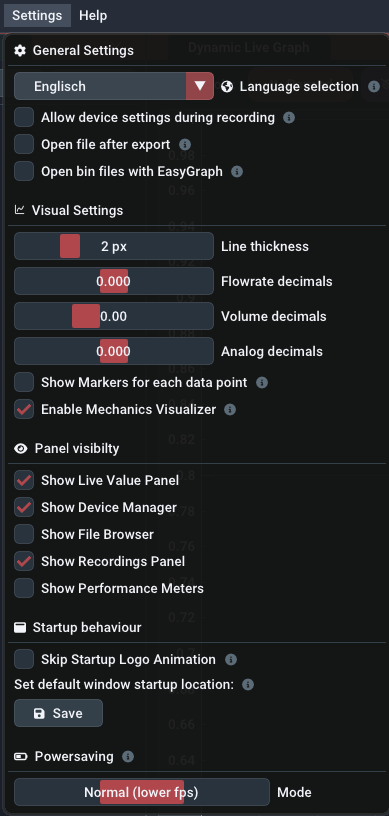
The settings menu contains options to change the behavour of the application and customize the appearance of the plot window:
GENERAL SETTINGS
Language selection: Switch UI language between Automatic, English or German. Other system languages will fall-back to English.
Allow device settings during recording1: While recording, access to the device property panel is normally prohibited. This setting can override this.
Open file after export: Open .xlsx and .pdf files automatically with the default application after export.
Open bin files with EasyGraph: Register the .bin file extension with EasyGraph for this user. This enables icons and double-clicks in explorer to open files directly.
VISUAL SETTINGS
Line thickness: Change the line width of all plots to make it thicker/thinner
Flowrate decimals2: Adjust the number of displayed decimal places in the live value panel for frequency type measurements
Volume decimals2: Adjust the number of displayed decimal places in the live value panel for count type measurements
Analog decimals2: Adjust the number of displayed decimal places in the live value panel for analog type measurements
Show Markers on each datapoint: Display a circle for every sample to see the actual timing of received datapoints from the dataloggers
Enable Mechanics Visualizer: Show/Hide option for gear and rotor visualization.
PANEL VISIBILITY
Show Live Value Panel: Displays the live value panel panel on the right that contains the live values of all datalogging streams in text form. The cursor measurement results are also displayed here.
Show Device Manager: Show the device management panel on the left in order to connect to or manage datalogging devices.
Show File Browser: Show the integrated file browser to open files.
Show Recordings Panel: Show the bottom left panel that contains all recordings and imported datasets.
Show Performance Meters: Show performance meters for the application in the top menu bar. The measured values are rendering performance (in FPS/Hz), CPU Load (in %) and RAM usage (in MB).

STARTUP BEHAVIOUR
Skip Startup Logo Animation: Check to not show the logo animation to save some seconds on program start.
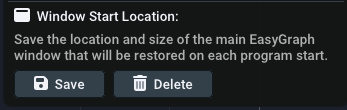
Set default window startup location: Using this feature, you can save the main EasyGraph window size and starting location that will be set at every program launch. To save the current location and size, simply press Save. To delete the custom starting location, press the Delete button. If no custom location is set (and thus no Delete button is visible), EasyGraph will start centered on the main monitor with some margin on each side.
You can use the Window Start Location feature for example to launch EasyGraph in fullscreen mode on another monitor.
It is not recommended to use this feature if you are frequently changing monitor configurations (e.g. docking your mobile workstation).
If the window is not visible after program start, close it using its taskbar icon and press and hold Shift during the next program start. This will reset the start location to default.
Help! I can't see the EasyGraph window after starting the application!
If you used the Set default window startup location feature before and changed the monitor configuration, it is possible that the main EasyGraph window is positioned out of the screen bounds. In this case close EasyGraph using the taskbar or task manager and hold Shift during the next program launch. This will set the window position to default for this start and you can delete the custom window start position.
POWERSAVING
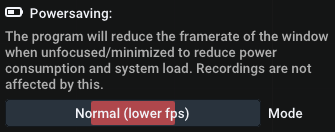
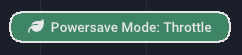
The powersave mode was implemented to limit hardware ressource usage when idle or unused. When the main window gets unfocused (e.g. minimized or another program is used on the PC), EasyGraph can throttle the framerate of the visualization to save power. When powersaving is active and the window is unfocused, a green ro gray indicator is shown in the top area of the live graph panel.
There are three different powersave modes for the unfocused program state. When focused, rendering is always performed at full speed.
Mode: Change the amount of powersaving the program will try to achieve:
- Off: Always render at full speed (0% power saving)
- Normal/Throttle: Lower framerate to 6 fps (~50% power saving)
default - Maximum: Stop rendering (~95% power saving)
Remark: Powersaving does not affect recording performance!
Help
In the Help menu you can find helpful options, such as:
- Open this documentation
- Search for software updates ( Internet Access required!)
- Option to reset math presets
- Option to restore the default window layout
Update Check
On each program start the software will check for software updates. Updates can contain new features, more device support, bugfixes and stability improvements. If a new update is available, a window will be shown with information about the changes and a link to the download page.
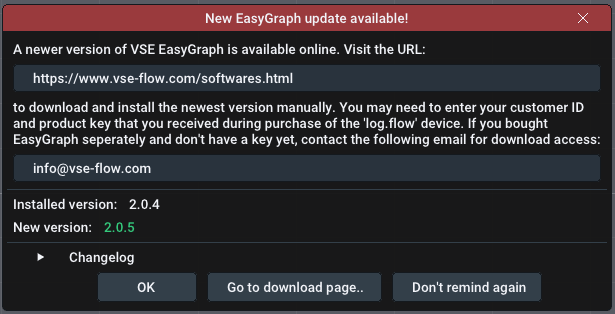
The update (msi file) must be installed manually. You will be redirected to our download portal where you will need to enter your customer id and the product/license key.
You can also invoke the update checker manually by clicking on the version number in the top right corner or using the Help menu.
-
Not recommended
Using this setting is not recommended because device parameters should not be touched during an active recording. This may also cause an uneven sample rate as there can be samples missing when parameters are synchronized between the pc and the device.
-
Hint: Decimal places \(\neq\) Precision
The decimal places sliders do not affect the recoding resolution or internal value.