Math Settings
Each channel of a device has its own math settings to adjust the scaling and unit to fit your requirements. Using the Calculation Assistant and Preset Manager you can easiliy create and manage your custom math settings.
The displayed value \(X_\text{Display}\) is calculated from the device's raw measured value \(X_\text{Raw}\) using the following simple formula:
Calculation Assistant
The Calculation Assistant helps you derive flowmeter-specific values such as K-factor, IPF, and nominal flowrate for selectable units. A database containing data of VSE flowmeters is embedded for lookup.
Supported flow-unit outputs include common volume-flow and mass-flow units such as l/min, l/h, ml/min, m³/h, CFM, kg/min, kg/h, lb/min, and related unit variants. Supported volume outputs include units such as l, ml, ccm, m³, gallon (US), gallon (UK), ft³, kg, g, and lb.
After this section, you should be able to calculate conversion values with fewer manual mistakes and quickly verify if the resulting signal trend is mechanically plausible.
Typical workflow:
- Open channel context menu and select Edit channel math.
- Launch the Calculation Assistant.
- Select a VSE flowmeter from the embedded database or enter a custom K-Factor.
- Choose target units and add density where required for mass-based units.
- Apply suggested factor/summand.
- Validate output in live view.
- Store as preset for later usage.
Best practices:
- Keep unit labels and scaling factor/offset aligned.
- Confirm one or two known reference points before saving presets.
- If calculated values drift from expectation, re-check decimal separator and source unit assumptions.
Analog Sensor Scaling
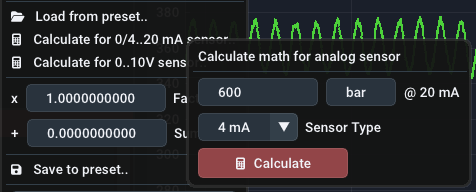
Analog sensors on vertain log.flow variants can be scaled using special functions for 0..10V or 0/4..20 mA sensors. You just need to input the fullscale value and sensor unit and the assiatant calculates the necessary gain and offset value and also sets the correct channel unit.
Tip: Save as preset
If you calculated math scaling factors, it is advisable to store them as a preset to have access to the same settings in another measurement session.
Math Presets
Math presets contain the math factor, math summand and unit text of a channel. Open the context menu of a channel to save or restore your math presets:
-
Save to preset
Save the current factor, summand and unit to a preset with a user-definable name. It is recommended that you choose a name that helps you differentiate this preset later, e.g. sensor name or type, IPF, ...
-
Load preset..
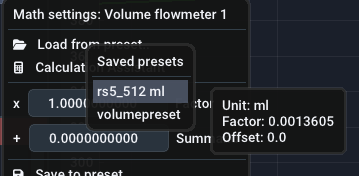
Load a previously saved preset. Left-click shows a list of all presets. Right-click on a specific preset in this list shows a menu with an option to permanently delete the preset.
Presets are stored by channel types so they dont get mixed up (e.g. analog sensor scalings and flowmeter scalings). This means that you need to create the presets for both the volume and frequency channels of a flowmeter for example.
Hovering a preset shows the stored factor and offset values. They can be deleted using the context menu's Delete button.